Rust in Nordic nRF apps

Summary
This post briefly describes how to get a simple Rust app compiled and running on Nordic nRF devices, using the official SDK.
The instructions Nordic provide are currently incomplete, this post describes the full details, but in summary:
- Install Nordic SDK as per instructions
- Modify
west.ymlto reinstate Rust language support - Run
west updateto install the Rust support - Apply any build modifications needed, e.g.
build.rs
Background
I thought it would be entertaining to try and get a Rust-based Bluetooth LE app running on a Nordic device. (I have an nRF52840-DK that I bought when I was reverse-engineering the TP25). Nordic's instructions for getting Rust support in Zephyr are here. In summary, they say:
- Enable Rust support by running two commands:
west config manifest.project-filter +zephyr-lang-rust
west update
-
Add a simple CMakeLists.txt,
-
Add a simple Cargo.toml.
- Both the
CMakeLists.txtandCargo.tomlhave samples given in the docs.
- Both the
-
Build the app using either the usual
west buildcommand, or using the VS Code plugin. -
Success!
Spoiler alert: Success not guaranteed. Most likely you will get the following error (or similar):
error: RUST (defined at modules/Kconfig.rust:4) is assigned in a configuration file, but is not
directly user-configurable (has no prompt). It gets its value indirectly from other symbols. See
http://docs.zephyrproject.org/latest/kconfig.html#CONFIG_RUST and/or look up RUST in the
menuconfig/guiconfig interface. The Application Development Primer, Setting Configuration Values,
and Kconfig - Tips and Best Practices sections of the manual might be helpful too.
Quick explanation
The issue is that this part of Nordic's documentation is copied directly from Zephyr's. However, they do not use the default West manifest from Zephyr, and haven't included Rust support in their version.
Steps to fix
Essentially, we need to edit the manifest and add the relevant modules to support Rust.
In VS Code the steps are:
- From the NRF plugin window, select "Manage SDKs", "Manage west workspace", and "Open west manifest"
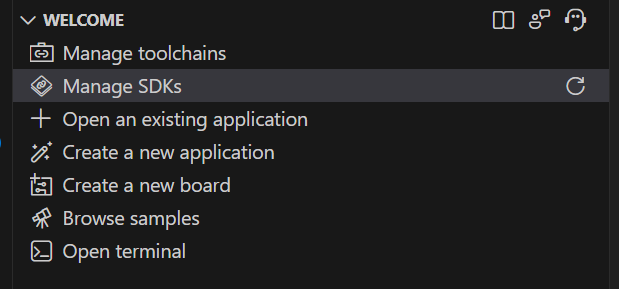

Sorry it's not the highlighted option

- Add the following snippet below in the appropriate place in the file:
  projects:
    - name: zephyr-lang-rust
      revision: dd73abc242e995784da62352fe8c70d9a6c7ac2e
      path: modules/lang/rust
      remote: zephyrproject
      groups:
        - optional
This snippet is in YAML, there's no need to duplicate the
projectskey, it's just there in the snippet to help you find the right place.
- Save and close the file
- Again click "Manage SDKs" and "Manage west workspace", but this time choose "Run west update" (it takes a few minutes to complete)
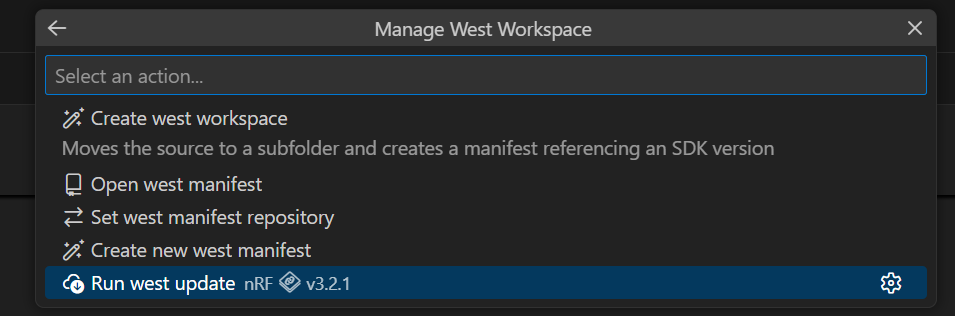
- Try steps from the Nordic docs again
- Success!
Actual success this time!
Annoyances
This procedure is all well and good, but there are a couple of things that might put you off trying to write Rust apps for nRF devices.
-
In VS Code, autocomplete is basically non-functional - or I couldn't figure out how to get it configured.
-
If you open it in CLion, it won't detect this project as a West workspace so lots of stuff doesn't quite work.
- I was able to get autocomplete to work pretty well using a
.cargo/config.tomlfile that was based on one from the Zephyr rust samples. (Out of scope for this article)
- I was able to get autocomplete to work pretty well using a
-
For writing BLE apps, the nRF SDK relies a lot on C macros - these obviously aren't supported in Rust.